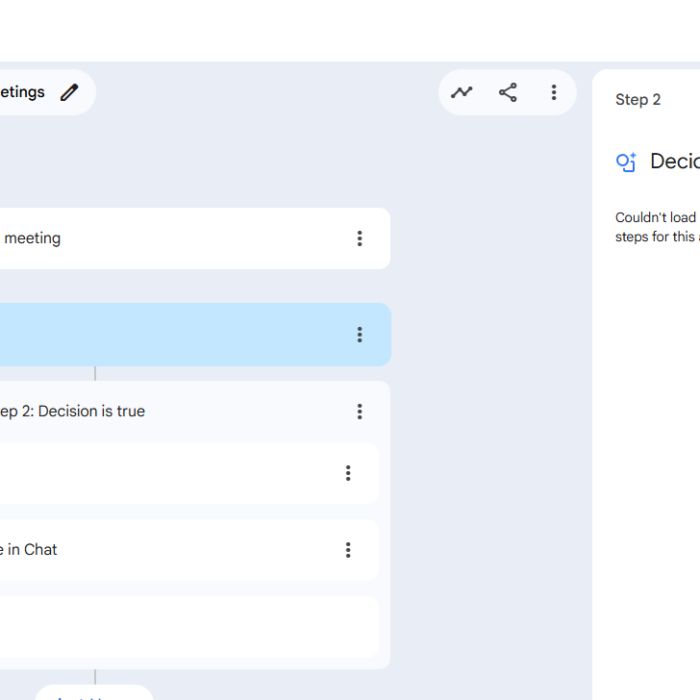
We recently ran into a frustrating issue where our team could not use Google Workspace Studio. With an error of
“Couldn’t load because your Google Workspace Admin doesn’t allow you to use steps for this app.”
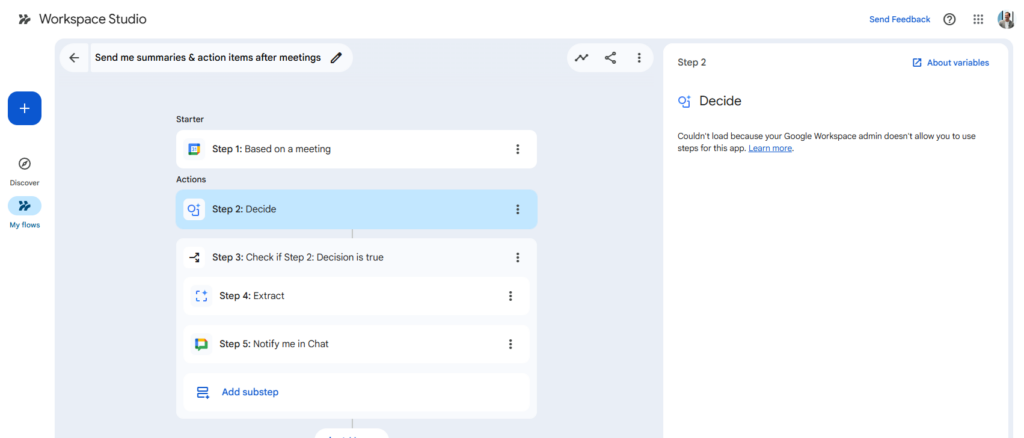
After investigating and reaching out to Google Support, we found the problem occurs when Context Aware Access is enabled. If you are hitting the same roadblock, here is the solution that got us back up and running.
Below is some context on why this happens, followed by the exact steps to resolve it.
Why the block occurs
For Workspace Studio to work with Context Aware Access turned on, it has to be exempted from API access blocks. Specifically, you need to exempt the API for 3 apps that workspace Studio uses in the background.
You might wonder why there is a distinction between a standard Google Task and a Task for Workspace Studio. Google Support explained that the Workspace Studio version acts as a plugin that uses the API. The distinction exists because Workspace Studio relies on APIs from other Google services to function.
As these things are not getting device signals Context Aware Access blocks them.
How to fix the “Couldn’t load because your Google Workspace Admin doesn’t allow you to use steps for this app” issue
To resolve this, your administrator needs to allow the specific OAuth Client IDs tied to Workspace Studio’s functionality. You can follow along with the video attached to this post, using these steps:
- Open the Google Admin console and go to your API access controls.
- Allow the below OAuth Client ID’s for the services you want to use:
- Core Workspace Studio / General: 122846605100-d4jhvnotnvqprrtasnrgrahea3015vrn.apps.googleusercontent.com
- Gmail: 653651007783-367aea46j9ra0jkssl9u8783gu91t55p.apps.googleusercontent.com
- Tasks: 898568525849-f6jivl2uk6o0gbg4e6r1vpi6goom0h7u.apps.googleusercontent.com
- Gemini: 296758037454-ssrceub8i8moppipckhk61mk8go2kk6t.apps.googleusercontent.com
- Google Chat: 873507009103-gi4ff8nkju6ggaurt6ebbiqrfmr0c79j.apps.googleusercontent.com
- Google Calendar: 469390422673-r0p2tar3lgjlnhtsv4t4uonq4bi2svf8.apps.googleusercontent.com
- Google Drive: 694558745529-92brqls6rjct461cs7aqq7vfrbhua375.apps.googleusercontent.com
- Google Docs: 485273575958-8k1607iujnatgmksa7igjoee7snlc7i1.apps.googleusercontent.com
- Google Sheets: 38402688245-th87uf1kjesqvopm6lf2v4sugvjbkl6k.apps.googleusercontent.com
- Google Forms: 883207888028-4bfq5l4rvep2fp0ivs0lm05db6stq200.apps.googleusercontent.com
- Google Meet: 234869138288-1etlpk2g7sei2dg27u4bb5ahpe3qri33.apps.googleusercontent.com
- Save your changes so the exemptions take effect.
How to verify the blocks
If you want to confirm this is the exact issue affecting your users before making any changes, your administrator can verify the blocks directly in the logs:
- Go to the Google Admin console and click Reporting.
- Navigate to Audit and investigation.
- Open the Context Aware Access log events.
- Filter the logs for the affected users.
- Look for Access Denied events.
- Review those denied events to confirm the specific OAuth Client IDs and the Context Aware Access policy that caused the denial.
These steps cleared up the issue for our team immediately. Let me know in the comments if you run into any hurdles while updating your admin settings.